
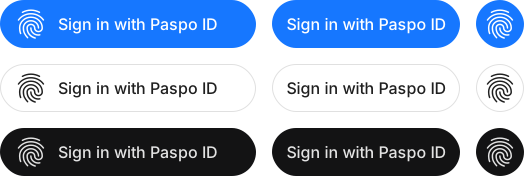
Sign-in button
renderButton draws the branded Sign in with Paspo ID button and starts sign-in on click. This is the recommended way: the button looks the same on every site, and on phones it prepares the sign-in attempt ahead of the tap — without that, iOS opens the Paspo web page instead of the app.
Quick start
import { renderButton, takeNonce, takeVerifier } from "@pingocean/paspo-sdk";

renderButton("#paspo-button", {
  clientId: "YOUR_CLIENT_ID",
  redirectUri: `${location.origin}/auth/paspo/callback`,
  scope: "openid email",
  onSuccess: async ({ code, state, via }) => {
    await fetch("/auth/paspo", {
      method: "POST",
      headers: { "Content-Type": "application/json" },
      body: JSON.stringify({
        code,
        code_verifier: takeVerifier(state),
        nonce: takeNonce(state),
        via,
      }),
    });
    location.assign("/");
  },
});
<div id="paspo-button"></div>

<script src="https://paspo.id/sdk/paspo.min.js"></script>
<script>
  Paspo.renderButton("#paspo-button", {
    clientId: "YOUR_CLIENT_ID",
    redirectUri: location.origin + "/auth/paspo/callback",
    scope: "openid email",
    onSuccess: function (result) {
      // POST result.code + Paspo.takeVerifier(result.state) to your server
    },
  });
</script>
renderButton takes every signIn option plus the look options below. The button replaces the container's contents.
Look
| Option | Values | Default |
|---|---|---|
theme | "brand", "light", "dark", "neutral" | "brand" |
cornerRadius | A number of pixels or any CSS length: 12, "0.5rem" | Pill |
iconOnly | true — a round, logo-only button | false |
showLogo | false — text only. Ignored with iconOnly | true |
// Light button with a 12 px radius
renderButton("#paspo-button", { ...options, theme: "light", cornerRadius: 12 });

// Logo only — for a row of social icons
renderButton("#paspo-icon", { ...options, theme: "dark", iconOnly: true });

// Text only
renderButton("#paspo-text", { ...options, showLogo: false });
Which theme to pick:
- brand — the primary button on a light background, when Paspo ID is the main way in.
- light — next to Google, Apple and other provider buttons on a white background.
- dark — on a dark background or in your site's dark mode.
- neutral — a grey button, when Paspo is one option among many.
The button lives in a shadow DOM: your site's CSS neither breaks nor restyles it. Its height is fixed at 44 px; the width follows the text. The label is always in English: "Sign in with Paspo ID".
Controlling the button
renderButton returns an object:
element | The button's host element inside the container |
setDisabled(disabled) | Disables the button, e.g. while your server request is in flight |
destroy() | Removes the button and its listeners. Call it when your component unmounts |
const button = renderButton("#paspo-button", {
  ...options,
  onSuccess: (result) => {
    button.setDisabled(true);
    exchange(result).finally(() => button.setDisabled(false));
  },
});
Options are read on every click: if you change, say, options.scope, there's no need to re-render the button.
renderButton runs only in the browser. In SSR frameworks call it after mount (useEffect, onMounted, ngAfterViewInit, onMount) — see the framework guides.
On phones
On iPhone, iPad and Android the button doesn't open a popup. The tab goes to Paspo: if the Paspo app is installed, it opens; otherwise the Paspo web page does. After consent the user lands on redirectUri?code=…&state=… in a new tab, so onSuccess doesn't run there — the callback page handles the code:
const query = new URLSearchParams(location.search);
const code = query.get("code");
const state = query.get("state") ?? "";

if (code) {
  await fetch("/auth/paspo", {
    method: "POST",
    headers: { "Content-Type": "application/json" },
    body: JSON.stringify({ code, code_verifier: takeVerifier(state), nonce: takeNonce(state) }),
  });
}
takeVerifier finds the verifier in the new tab too: for the app flow the SDK keeps it in localStorage for 15 minutes — enough to install the app from the store and come back.
To keep phones on the popup, like a computer, pass mobileApp: false.
Your own button
If the branded button doesn't fit, call signIn from your own button's click handler:
import { signIn } from "@pingocean/paspo-sdk";

myButton.addEventListener("click", () => {
  signIn({ clientId, redirectUri, scope, onSuccess, onError, onClose });
});
- Call
signInsynchronously: anawaitbefore it makes the browser block the popup. - On iOS, sign-in from a custom button opens the Paspo web page, not the app: iOS hands a link to an app only when the tap itself starts the navigation, and PKCE is computed asynchronously.
renderButtonprepares the attempt ahead of time, so the app opens.